Everything you need to build your CV, explained in plain language. Start at the top, or jump to the part you are stuck on.
Start here
What OnlineCV does, and the five steps from an empty form to a finished PDF.
OnlineCV builds a CV — also called a résumé — in your web browser. There is no account to create, nothing to install and nothing to pay.
Everything you type stays on your own device. Your CV is never uploaded anywhere, which also means nobody can recover it for you. Backup when you have finished — see Backup and starting over.
What you get
A clean CV on one or two A4 pages.
A real PDF: the text can be selected, copied and read by software, not a picture of a page.
6 designs to choose from, and you can switch at any time without retyping anything.
The CV itself in any of 22 languages — separately from the language you use the app in.
Five steps
Answer the short first screen: your name, email, date of birth and job title.
Fill in the sections on the left — contact details, work experience, education, skills, and anything else that applies to you.
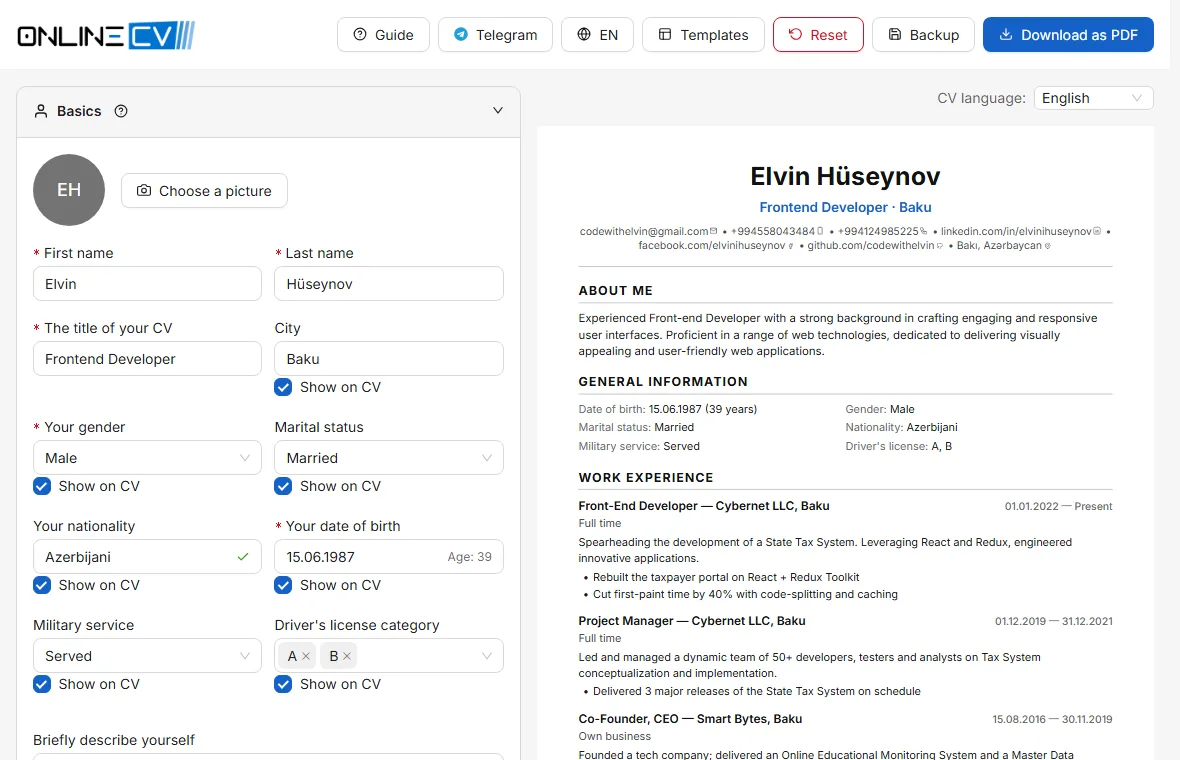
Watch the preview on the right. It shows the finished CV and updates as you type.
Pick a template you like.
Press Download as PDF and send the file to employers.
The main screen: you fill in the form on the left, and the finished CV appears on the right.
This guide is always within reach: the ? button in the top bar opens it, and each section of the editor has a small ? that opens the page explaining that section.
The first screen
The two short steps OnlineCV asks for before the editor opens.
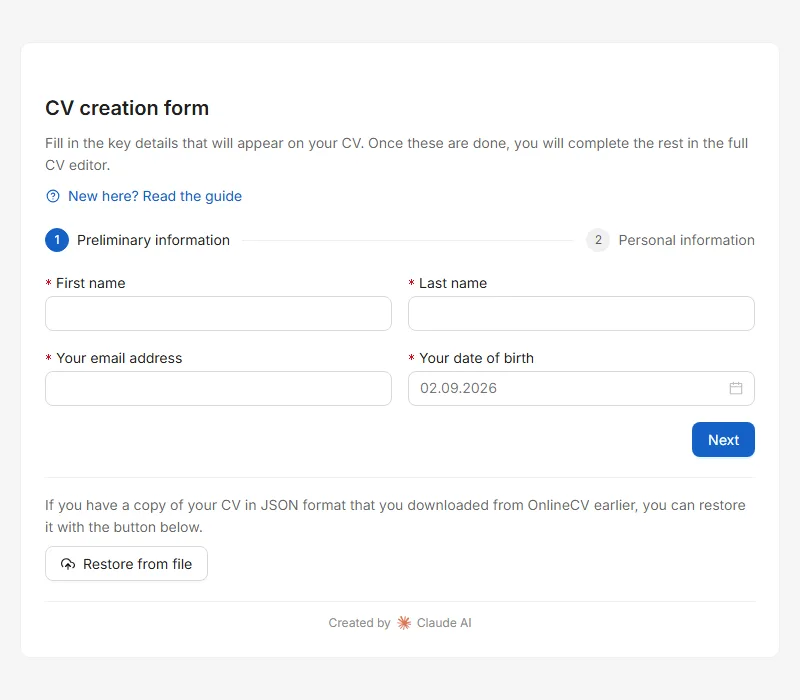
On your first visit OnlineCV asks for a few details so your CV is not completely empty. It takes about a minute, and you can change every one of these later in the editor.
Step 1 — who you are
First name and last name
Letters and spaces only, up to 50 characters each. Write them the way they appear on your ID or passport — this is the name an employer will search for later.
Email
The address an employer will reply to. Use one you actually check, and avoid an address at your current employer, which you may lose access to.
Date of birth
Choose it from the calendar or type it as DD.MM.YYYY. It is used to work out your age. You can hide it from the finished CV later if you prefer not to show it.
Step 2 — your profile
Your CV title
The single line printed under your name, up to 50 characters. Write the role you want, not your situation: Frontend developer rather than Looking for a job.
Nationality
Start typing and pick a suggestion, or type your own. Optional — leave it empty if you would rather not state it.
Gender
Required on this screen because many employers in this region expect it. You can hide it from the printed CV afterwards.
Marital status
Optional. Leave it empty if you would rather not say; an empty field is simply left off the CV.
The first screen. Nothing you type here is sent anywhere — it goes straight into your own browser.
Press Finish and the editor opens with your details already in place.
Already have a backup file?
If you built a CV before and saved a backup, do not retype it. At the bottom of step 1 there is a Restore from file control: choose your `.json` backup and your whole CV is loaded at once. This is the only screen that offers it — see Backup and starting over.
The editor screen
How the form, the live preview, autosave and the two language settings work.
The editor has two halves. On the left you fill in a form. On the right you see the finished CV, exactly as it will be printed. Everything you type appears on the right immediately.
Sections
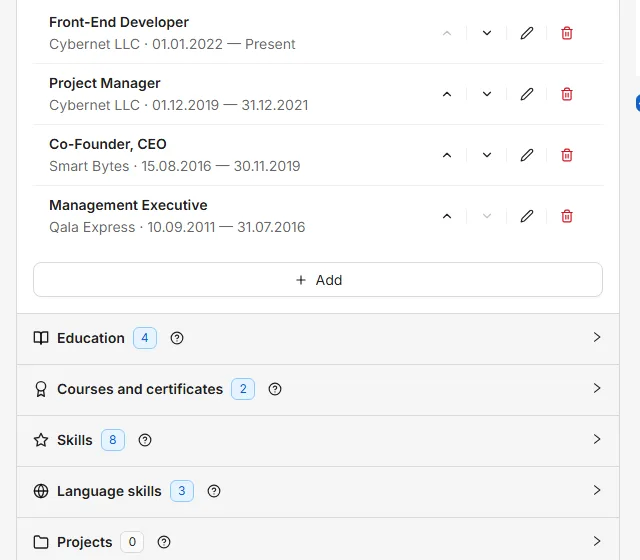
The form is split into sections — your details, contact, work experience, education and so on. Click a section heading to open or close it. The small number next to a heading is how many entries you have added to it.
A section and its entries. Use Add to create one, the pencil to change one, and the bin to remove one.
Adding, changing and removing entries
Add opens a small window where you fill in one job, one school, one skill, and so on. Nothing is saved until you press Save in that window.
The pencil on an entry reopens it for changes.
The bin removes an entry. You will be asked to confirm.
An empty section is simply left off the finished CV — you never have to fill in a section that does not apply to you.
The order of dated entries
Work experience, education and certificates are put in the order employers expect: newest first. Anything still ongoing comes at the very top. You do not have to arrange them yourself — the order comes from the dates you entered.
If you want a different order, switch that section from Newest first to Custom order and arrows appear on each entry so you can move them by hand. The switch only appears once a section has more than one entry.
Suggestion lists
Fields such as city, university, job title, skill and language offer suggestions as you type. They are only suggestions: you can always type your own value, and it will be kept exactly as you wrote it.
When your text matches a suggestion, a small tick appears in the field. That tick means one useful thing: a matched value is automatically rewritten when you change the CV language, so a university picked from the list appears in the CV's own language.
Your work is saved automatically
There is no Save button for the CV as a whole. Every change is stored in this browser a moment after you make it, so you can close the tab and come back later.
Your CV is saved in this browser on this device only. It will not appear on your phone, in another browser, or in a private/incognito window. Clearing your browsing data deletes it. Backup to move it or keep it safe.
Two different language settings
Interface language
The language of the app itself — buttons, labels and this guide. Change it with the language button in the top bar. It does not touch your CV.
CV language
The language of the headings printed on your CV — Work experience, Education, and so on. Set it at the top of the preview. Use the language of the employer you are applying to.
Changing the CV language never translates what you wrote. Your own sentences stay exactly as you typed them; only the headings, dates and values picked from a suggestion list change.
On a phone
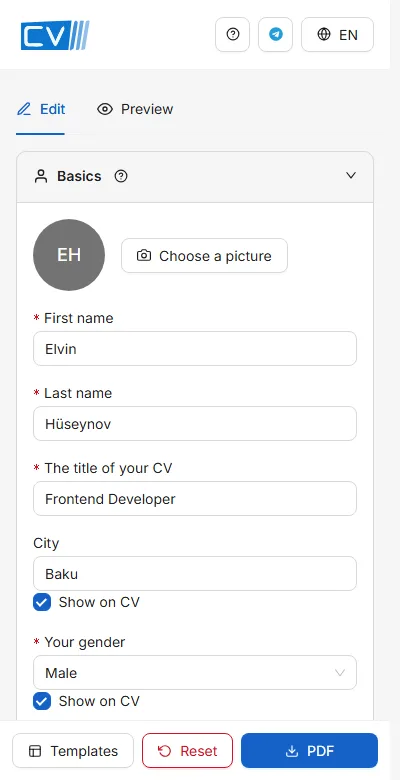
There is not enough room for two halves on a phone, so the form and the preview become two tabs — Edit and Preview. The buttons you need most sit in a bar along the bottom of the screen.
On a phone the form and the preview are separate tabs, with the main buttons fixed along the bottom.
Your details
Name, job title, photo, personal details, and the short summary at the top of the CV.
This is the block at the top of your CV: who you are and what you do. It is the first thing anyone reads, so it is worth a few extra minutes.
First name and last name
Letters and spaces only, up to 50 characters each. As they appear on your ID.
Your CV title
One line under your name, up to 50 characters. Name the role, not your search: Accountant, Sales manager, Java developer. If you are a student, Economics student is fine.
City
Where you live. Employers use it to judge travel time. City is enough; a full street address is not needed here.
Photo
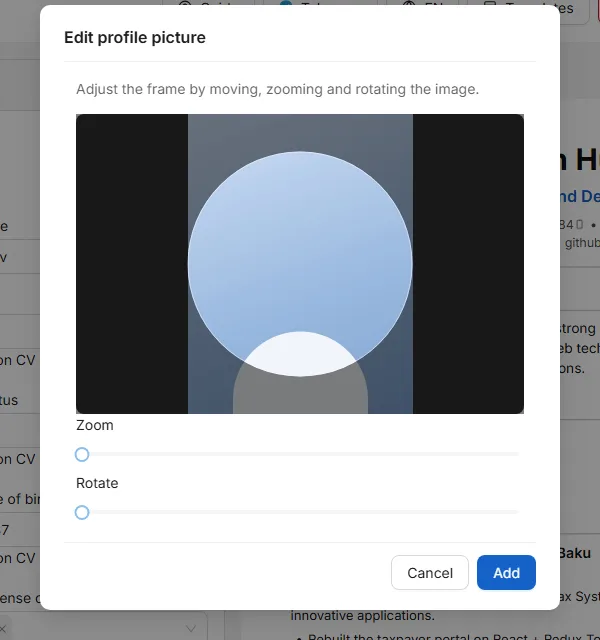
A photo is optional. To add one, click the photo area, choose an image, then frame it: drag to move, use the slider to zoom, and rotate if the picture is on its side. What you see in the circle is what will be printed.
Framing a photo: drag to move it, zoom and rotate until the circle shows what you want.
The picture is shrunk inside your browser before it is stored, so a large photo from a phone camera is fine. Files bigger than about 10 MB are refused.
Photos are normal on CVs in Azerbaijan, Turkey and much of continental Europe. In the United Kingdom, Ireland, the United States and Canada they are discouraged and can get a CV rejected. Check what is usual where you are applying — and remember not every template shows a photo.
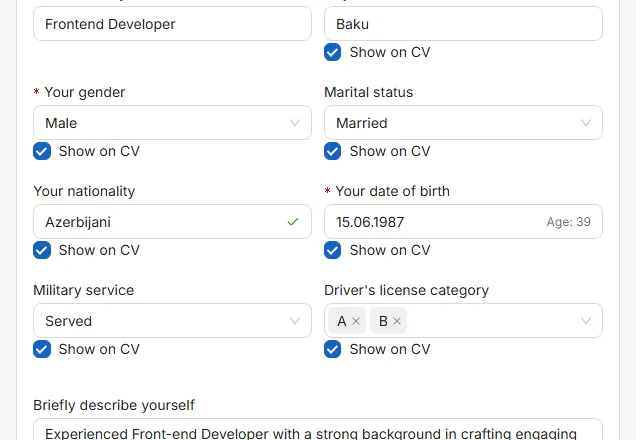
Personal details
Date of birth
Typed as DD.MM.YYYY or picked from the calendar. Your age is worked out from it.
Gender
Male or female.
Marital status
Single or married. Optional.
Nationality
Pick a suggestion or type your own. Optional.
Military service
Served, not served, or unfit for military service. Commonly expected in Azerbaijan and Turkey. Optional.
Driver's license category
Choose one or more categories, or type your own if your country uses different letters. Worth adding when the job involves travel.
Hiding a detail from the printed CV
Some of these details are expected in one country and best left out in another. Each one has a small eye button beside it: click it and the field is kept in the app but left off the finished CV and the PDF. Click again to show it.
The eye beside a field decides whether it is printed. Crossed out means the detail stays in the app but not on the CV.
This is the tidy way to send the same CV to different countries: fill everything in once, then hide your photo, date of birth or marital status when the employer would rather not see them.
Summary
Two or three sentences at the top of the CV, up to 300 characters. Say who you are professionally, how long you have been doing it, and what you are looking for.
Good: Accountant with six years in construction. I handle VAT returns and monthly closing for a company of 200 staff. Looking for a senior role in a larger finance team.
Weak: Hard-working, responsible and motivated team player seeking a challenging opportunity in a dynamic company.
The difference is that the first one could only have been written by you. Anything that could be said by any candidate is not telling the reader anything.
Contact details
Phone numbers, email, profiles and address — and how to write a phone number the app accepts.
Your email address came from the first screen. In this section you add the other ways an employer can reach you. Press Add, choose a channel, type the value, and press Save.
Phone numbers
Phone numbers must be written in the international form: a plus sign, then your country code, then the number, with no spaces, brackets or dashes.
Correct: +994501234567
Correct: +905321234567
Wrong: 0501234567 — no country code
Wrong: +994 (50) 123-45-67 — spaces, brackets and dashes
The same rule applies to mobile, landline, fax and WhatsApp numbers. It is not fussiness: written this way, the number can be dialled from any country, and it becomes a link an employer can tap.
What each channel expects
Mobile, landline, fax
A number in the international form above.
WhatsApp
The phone number in the same form. It becomes a link that opens a chat.
Telegram
Your username — with or without the @ — or a phone number.
Email
An additional address, if you want to give more than the main one.
Website
The full address including https://
LinkedIn, Facebook, GitHub, Instagram, X
The full address of your profile page, for example https://www.linkedin.com/in/yourname — not just your username.
Address
A postal address, up to 120 characters. Usually the city is enough on a CV.
How they appear on the CV
Each contact gets a small icon after it, so a reader can tell a mobile number from a landline or a WhatsApp number at a glance. In the PDF, phone numbers, email addresses and profile links are clickable. The text itself is printed exactly as you typed it.
Add what is useful, not everything you have. A phone number, an email address and one professional profile are usually enough. A personal Instagram account rarely helps an application.
Work experience
The section employers read first — and how to write an entry that survives a quick scan.
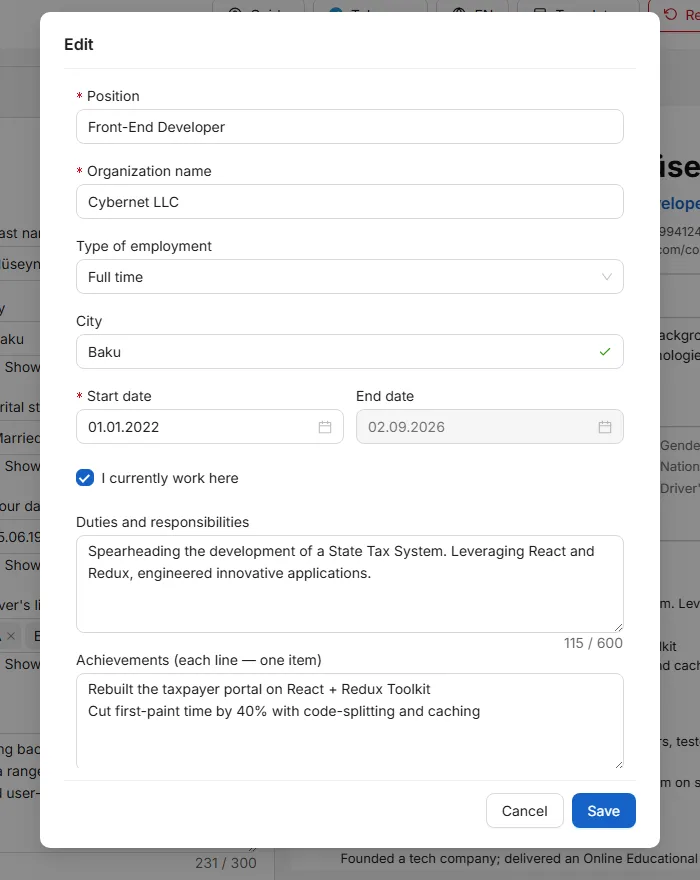
Add one entry per job. Press Add and fill in the window that opens.
One job at a time. Nothing is saved until you press Save at the bottom of the window.
Job title
Your role, up to 50 characters. Use the title people in the industry would recognise, not an internal grade like Specialist II.
Company
The employer's name. Required.
Employment type
Full-time, part-time, self-employed, freelance, contract, internship or seasonal. Optional, but useful — it explains a short entry before anyone has to ask.
City
Where you did the job. Optional.
Start date and end date
Both are full dates, typed as DD.MM.YYYY or chosen from the calendar. The end date must not be earlier than the start date.
I currently work here
Tick it for your present job. The end date is then ignored and the CV prints Present.
Description
Two or three sentences about what the job actually involved, up to 600 characters.
Key achievements
Short bullet points, up to 200 characters each. This is where the results go.
Description or achievements?
Use the description to say what the job was — the scope, the team, the customers. Use key achievements for what you personally changed, with a number wherever you can put one.
Weak: Responsible for sales.
Better: Grew regional sales by 24% in two years by adding 15 new retail clients.
Weak: Worked on the company website.
Better: Rebuilt the checkout page; cart abandonment fell from 71% to 58%.
If you have no figures, use scale instead: how many people, how many customers, how large a budget, how often. Trained 12 new cashiers says more than Trained new staff.
The order of your jobs
Jobs are listed newest first, with any job you still hold at the top. That order comes from the dates, so you do not have to arrange it. If you want a different order, switch the section to Custom order and use the arrows.
No paid experience yet? Leave this section empty and fill in Projects, Education and Skills instead. An empty section is never printed.
Education
School, college and university — and which fields each of them asks for.
Add one entry per institution. The first thing you choose is the type, and it decides which of the other fields appear.
Type
Secondary education, vocational education, or higher education.
Institution
Start typing and pick from the suggestions, or type the full name yourself.
Speciality
What you studied. Required for college and university — it is on your diploma.
Faculty
Always optional. Many diplomas do not name one; leave it empty if yours does not.
Degree
Bachelor, master, doctoral candidate, residency or doctorate. Required for university entries.
Start date and end date
Month and year only. If you are still studying, tick I am currently studying and leave the end date empty.
Comment
One short note, up to 50 characters — for example a grade, an honour, or a thesis subject.
Entries are listed newest first automatically, with ongoing studies at the top.
If you have a university degree, you can usually leave school out. If you do not, list your school — an empty education section looks worse than a modest one.
Certificates
Courses, professional certificates and licences.
Use this for anything formally awarded to you outside a degree: a professional certificate, a language certificate, a training course, a safety licence.
Name
The certificate's own name, up to 100 characters — for example ACCA Applied Knowledge or IELTS Academic.
Issuing organisation
Who awarded it. Required.
Date of issue
Month and year. Certificates are listed newest first by this date.
Expiry date
Only if the certificate really expires. Leave it empty otherwise and the CV prints no expiry.
Credential ID
The reference number on the certificate, if it has one. It lets an employer verify it.
Credential link
A web address where the certificate can be checked. It must start with http:// or https:// and becomes a clickable link on the CV.
Comment
One short note, up to 100 characters — a score, for example.
A certificate with a score is worth more than one without. IELTS Academic — 7.5 tells a reader something; IELTS on its own does not.
Skills
What the 1 to 100 level actually means, and how many skills to list.
Each skill has a name and a level from 1 to 100. Type the skill — suggestions appear — then set the level with the slider or by typing the number.
What the number means
There is no official scale, so use this one and be honest. An inflated number is found out in the first interview question.
1–20 — Beginner
You have tried it. You would need help and supervision.
21–40 — Basic
You can do simple tasks on your own, slowly, and you look things up often.
41–60 — Confident
You use it in your daily work without help. This is where most real skills sit.
61–80 — Strong
You handle difficult cases and other people ask you for help.
81–100 — Expert
You could teach it, set the standards, or be the person a company hires specifically for this.
Do not put everything at 100. A CV where every skill is maximum tells a recruiter nothing, and it makes the genuine strengths invisible.
How many, and which
Eight to twelve is a good number. A list of thirty is read as a list of none.
Leave out the things everybody claims — hard-working, responsible, team player. Show those in your achievements instead.
Match the words in the job advert where they honestly apply to you. Software that filters CVs looks for exactly those words.
Some templates print the level as a bar, others as a percentage, and some do not print it at all. Check the preview after switching template.
Languages
The A1 to C2 levels in plain words, so you can pick yours honestly.
Add one entry per language: the language and your level. Type the language name — suggestions appear, and you can type any language that is not on the list.
The levels
These are the standard European levels (CEFR), the same ones used by language schools and exams.
A1 — Beginner
A few words and set phrases. You can say your name and order a coffee.
A2 — Elementary
Simple sentences about familiar things — family, shopping, your job in outline.
B1 — Intermediate
You cope with everyday situations and can explain your opinion, slowly and with mistakes.
B2 — Upper intermediate
You work in this language. You follow meetings, write emails, and discuss your own field comfortably.
C1 — Advanced
You use it fluently and almost automatically, including in complex or unfamiliar subjects.
C2 — Proficient
Close to a well-educated native speaker, including nuance and humour.
Native
Your first language, or one you grew up speaking as one.
If you have an exam certificate, add it under Certificates as well, with the score. A stated level plus a certificate is far more convincing than a stated level alone.
Be realistic. Interviews are often held in the language you claimed, and a B2 written on a CV is the most common thing an interviewer tests in the first two minutes.
Projects and interests
Two optional sections that are worth the most when your work experience is short.
Projects
A project is anything you built or ran that shows what you can do — a piece of coursework, a shop you set up, a website, a volunteer campaign, an app. For students and career changers this section often does more work than any other.
Name
What the project was called, up to 100 characters.
Description
Up to 600 characters: what it was, what you did, and how it turned out.
Link
A web address where it can be seen. It must start with http:// or https://
Key points
Short bullets, up to 200 characters each — the same idea as achievements in a job entry.
Say what your part was. Team of four; I built the payment page is much more useful than We built an online shop.
Interests
Optional, and short. Three to five specific interests can give an interviewer something human to open with. Be concrete: Long-distance running (two marathons) works; music, sport, reading does not.
If you are short of space, this is the first section to leave out. Neither section is printed while it is empty.
Templates
How to choose a design, and what "ATS-friendly" means for your chances.
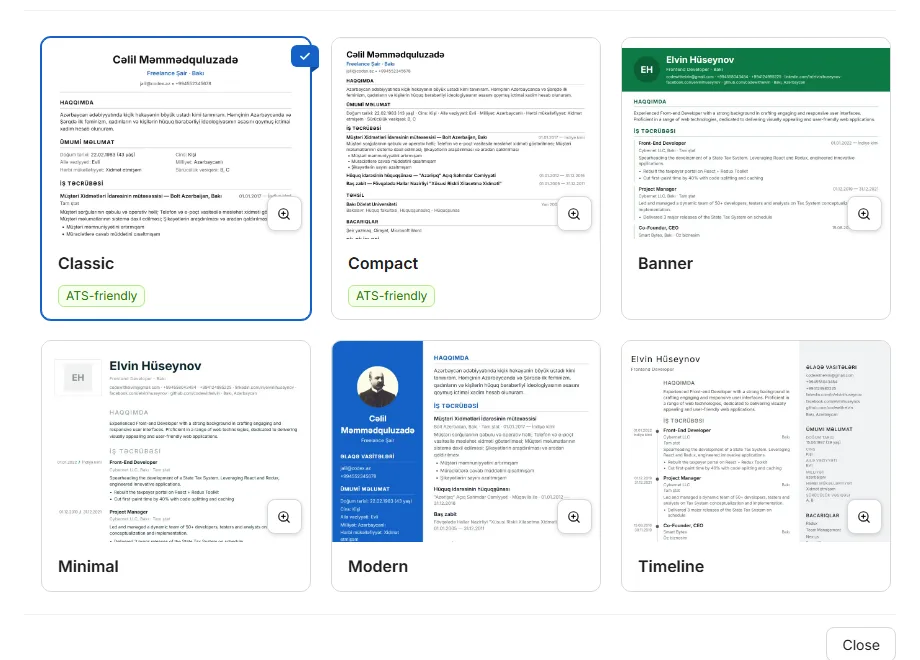
Press Templates to see the 6 designs. Choosing one changes the layout only — none of your text is touched, and you can switch back at any time. Your choice is remembered.
The template gallery. The badge marks the designs that are safest for automated CV screening.
What ATS means
Many medium and large employers do not read CVs by hand first. The file goes into an applicant tracking system — software that pulls out your name, jobs, dates and skills and puts them in a database. If the software cannot read the file properly, a human may never see it.
Templates marked ATS-friendly are built for that: one column, no photo, no decorative bars, plain headings. They are the safe choice when you are applying through a company careers portal or a large job board.
Applying through a company website or a big job board? Use an ATS-friendly template.
Emailing a person directly, or working in a design field? A two-column or coloured template is fine and stands out.
Not sure? Use an ATS-friendly one. It never hurts; the reverse can.
Every template here produces a real text PDF, so your words are always machine-readable. The badge is about layout — columns, photos and coloured panels are what confuse older screening software.
Download as PDF
Getting the finished file, and what to do when the button is greyed out.
Press Download as PDF. The file is created inside your browser and saved to your device, named after you and today's date.
The buttons in the top bar: choose a template, start over, save a backup file, and download the PDF.
If the button is greyed out
Downloading needs three things: a first name, a last name, and a valid email address. If any of them is missing or wrong, the button stays disabled and hovering over it says so. Fill them in and it turns blue immediately.
What you get
A real PDF: the text can be selected and copied, and screening software can read it.
Always A4 portrait, whatever device you built it on.
Links that work — phone numbers, email addresses and profile links are clickable.
One or two pages, depending on how much you have written.
The first download of a session takes a few seconds longer, because the part of the app that makes PDFs is only loaded when you actually ask for one. After that it is instant.
Check the preview before sending. If your CV runs onto a third page, shorten your descriptions or remove an optional section — two pages is the practical maximum for most jobs.
Backup and starting over
How to keep a copy of your CV, move it to another device, or clear it and begin again.
Your CV lives in this browser only. Clearing your browsing history, using a private window, reinstalling the browser or switching device will lose it. There is no server copy and no password reset — a backup file is the only way to keep it.
Saving a backup
In the editor, press Backup. A `.json` file is downloaded, holding your whole CV including your photo. Keep it somewhere you can find it again — cloud storage, email to yourself, a USB stick.
You can save a backup at any point, even half-finished. It is not gated the way the PDF download is.
Restoring from a backup
Open OnlineCV on the device you want your CV on.
On the first screen, find Restore from file at the bottom of step 1.
Choose your `.json` backup.
The editor opens with everything back in place.
Restoring is offered on the first screen only. If this browser already has a CV in it, you will not see the control — press Reset first, then restore. That is deliberate: it stops a file quietly overwriting work you had not backed up.
If part of a file cannot be read — an unusual date, a channel this version does not know — the rest is still loaded and you are told what was skipped, rather than being shown a CV that is quietly missing something.
Starting over
Reset empties the CV completely and takes you back to the first screen. You are asked to confirm first.
Reset cannot be undone. Backup first unless you are certain you want the CV gone.
Install it and work offline
OnlineCV can be installed like an app and keeps working without an internet connection.
OnlineCV is a website that can be installed. Once installed it opens in its own window from your home screen or Start menu, with no address bar.
Installing
Chrome or Edge on a computer
Click the install icon at the right-hand end of the address bar, or use the browser menu and choose to install the app.
Android
Open the browser menu and choose Add to Home screen or Install app.
iPhone or iPad
In Safari, press the Share button and choose Add to Home Screen.
Working offline
After your first visit, OnlineCV works with no connection at all. You can edit your CV, change template, and download the PDF on a plane or with mobile data switched off. A small banner tells you when you are offline.
Two things need the internet the first time only: the screenshots in this guide, and the extra fonts used for Chinese, Japanese and Korean. Once loaded, they are kept for later.
When a new version is available you are offered a reload. Nothing is replaced under you while you are typing.
Privacy
What stays on your device, what does not, and how to change your mind.
There is no account, no login and no server behind OnlineCV. Your CV never leaves your device as a file. Nobody at OnlineCV can read it, and there is nothing to be leaked in a data breach because there is no database.
The one thing that does leave
On your first visit you are asked whether you agree to usage statistics. Nothing at all is loaded before you answer.
If you agree, three measurement tools are started — Google Analytics, Microsoft Clarity and Yandex Metrica. They record which pages and buttons are used, your device and browser, your approximate region, and a recording of the session, which includes what you type into the form. That is stated plainly because it is how we find out where people get stuck; it is also exactly why it is your choice.
If you refuse, none of them is loaded and nothing is collected. The app works exactly the same. The cost is ours, not yours: problems you run into cannot reach us, so they cannot be fixed.
Changing your mind
The Privacy and analytics link at the bottom of the page reopens the question at any time and shows your current choice. Withdrawing takes effect after a reload.
Your answer is remembered per browser, not stored with your CV — so resetting your CV does not make the app ask again.
Writing a CV that gets read
Practical advice for the hard part: deciding what to put in.
A recruiter looking at a pile of CVs gives each one a few seconds before deciding to read properly or move on. Everything below is about surviving those seconds.
The basics
One page if you have under five years of experience, two if you have more. Three is almost never read to the end.
Adjust it for each job. Reorder your achievements so the ones matching the advert come first. This is fifteen minutes that changes the result more than anything else here.
Use the advert's own words where they honestly describe you. Screening software matches text literally: if the advert says accounts payable, that phrase should appear if you have done it.
Check the spelling of your own job titles and your email address. A typo in an email address is a CV nobody can reply to.
Write results, not duties
A job description says what you were supposed to do. A CV should say what actually happened because you were there. Every entry can be improved by asking so what?
Duty: Managed the company's social media accounts.
Result: Grew the company's Instagram following from 2,000 to 11,000 in a year; enquiries from social media tripled.
Duty: Handled customer complaints.
Result: Took over the complaints queue and cut the average response time from three days to four hours.
Use numbers
Numbers are the fastest way to be believed. How many people, how much money, how much faster, how many customers, how often. If you truly have no figures, use scale and frequency: a team of six, around 40 calls a day, a portfolio of 12 clients.
Leave out
References available on request — assumed, and a wasted line.
Your ID number, your exact street address, your bank details. Never put these on a document you send to strangers.
Reasons for leaving previous jobs, and current or expected salary, unless you were asked for them.
Empty adjectives with nothing behind them. Hard-working is worth nothing; covered two colleagues' work for three months during a system migration is the same claim, proved.
Gaps and short jobs
Do not hide them; explain them briefly. Study, illness, caring for family, national service and starting a business are all ordinary reasons, and an explained gap stops being a question. Use the Employment type field for short entries — Internship or Seasonal explains a three-month job before anyone has to wonder.
Before you send it
Read your CV out loud. Anything you stumble over is a sentence to shorten.
Check that every date is right and that there are no unexplained gaps.
Confirm your phone number and email address, character by character.
Download the PDF and open it. That is the file the employer sees, not the preview.
Ask one other person to read it. They will find the mistake you have stopped seeing.
Common questions
Short answers to the things people ask most often.
Is it really free?
Yes. There is no account, no trial, no watermark and no paid version.
Where is my CV stored?
In your own browser, on the device you typed it on. Not on any server.
Can I carry on from my phone?
Only by saving a backup file on one device and restoring it on the other. There is no sync, because there is no account.
Can I keep more than one CV?
One CV per browser. To keep several versions, save a backup file for each one and restore the one you need.
Why can't I press Download?
A first name, a last name and a valid email address are needed. Hover over the button and it will tell you.
Can I edit the PDF afterwards?
Change it here and download again — that is quicker and keeps the layout right. Editing a PDF elsewhere often breaks the text layer that screening software reads.
Does it work without internet?
Yes, after your first visit. Editing and downloading the PDF both work offline.
I cleared my browser data and my CV is gone. Can you restore it?
No. Nothing is stored outside your device, so there is nothing to restore from. Only a backup file can bring it back.
Why is my CV two pages?
Because of how much you have written. Shorten descriptions, cut older jobs to a line each, or hide an optional section.
Can I change the order of the sections?
Not the sections themselves. You can reorder the entries inside work experience, education and certificates with the Custom order switch.
Which template should I choose?
An ATS-friendly one if you are applying through a company website or a large job board. Otherwise whichever you prefer.
Is my data used to train AI, or sold?
No. Your CV is never sent anywhere, so there is nothing to sell or train on. If you agreed to usage statistics, the measurement tools listed under Privacy receive session data — refusing switches all of that off.
Still stuck? The Telegram button in the top bar leads to the project's community group.